
Attlocal.net
Attlocal.net provides direct access to your router's configuration interface. This guide covers the login process, default credentials, and troubleshooting.
This is not your router’s admin page.
To open the real router interface, enter attlocal.net directly in your browser’s address bar while connected to the same local network.

If the page does not open, make sure you are connected to the correct router and that the address is entered without extra spaces or search terms.
Quick Access
What is Attlocal.net?
Attlocal.net is a local web address that gives you access to the admin panel of your AT&T router. This address only works when you are connected to the router's network.
Compared to a numeric IP address, Attlocal.net is easier to remember and is provided by the manufacturer as a convenient alternative for accessing the settings page.
How to access the router login page
- 1
Make sure your device (computer, phone, or tablet) is connected to the router — either via Wi-Fi or with an Ethernet cable plugged directly into the router.
- 2
Open any web browser and type http://attlocal.net into the address bar. Press Enter. If the page does not load, try 192.168.1.1 or 192.168.0.1 instead.
- 3
Wait for the login page to appear. This may take a few seconds.
- 4
Enter the login credentials. If you have never changed them, check the sticker on the back of the router or the documentation from your Internet provider.
- 5
After logging in, you will see the router dashboard where you can manage all settings.
Troubleshooting
Cannot reach Attlocal.net in your browser? Hostname resolution issues, incorrect credentials, and network configuration problems are among the most common causes. Use the steps below to diagnose and fix the issue.
⚠Attlocal.net does not open — try the IP address
If the hostname does not resolve, try using the numeric IP address instead. Some network configurations or DNS settings may prevent the hostname from working.
⚠Login credentials are not accepted
The default credentials may have been changed by you or your ISP. Check the sticker on the back of the router for the current password. If it was changed and you cannot remember it, a factory reset will restore the defaults.
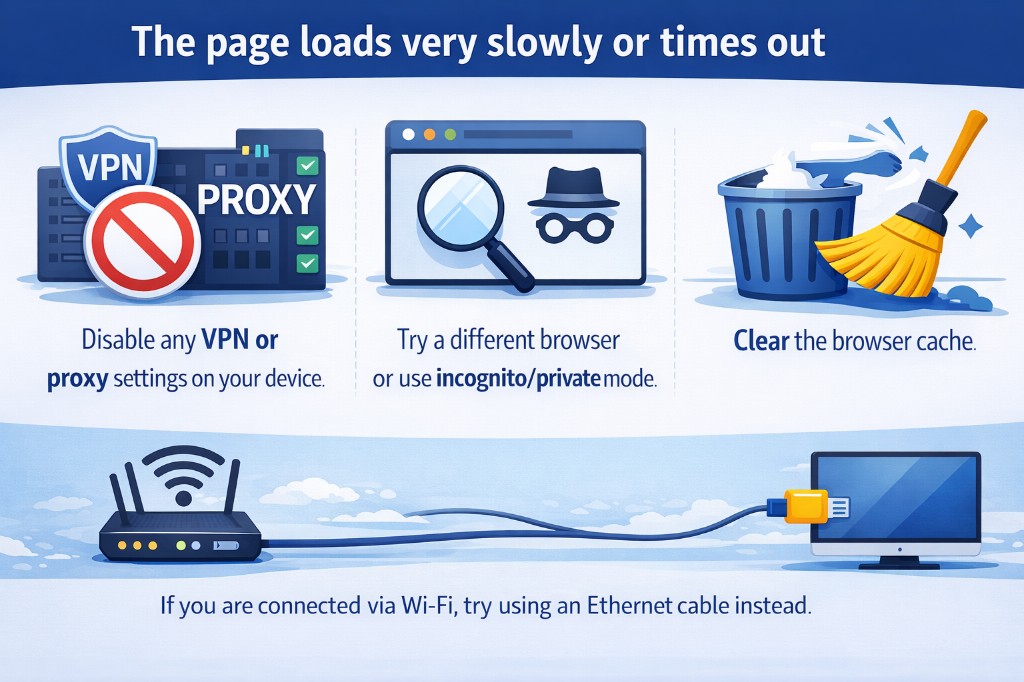
⚠The page loads very slowly or times out
Disable any VPN or proxy settings on your device. Try a different browser or use incognito/private mode. Clear the browser cache. If you are connected via Wi-Fi, try using an Ethernet cable instead.
⚠Firewall or security software blocking access
Some antivirus or firewall software may block access to local IP addresses. Temporarily disable the firewall and try again. On company or managed devices, your IT department may have restricted access to the admin page.
⚠How to reset the router to factory settings
Locate the small reset button on the back of the router (you may need a paperclip). Press and hold it for at least 10 seconds until the LEDs start blinking. The router will restart with the factory defaults, including the original login credentials.
Example screens
Interface screenshots for this device will be added soon.