
Internet Speed Test
Internet Speed Test check how fast is your WiFi network or broadband internet speed upload and download, ping, jitter, and bandwidth by Ookla Speed Test.
An internet speed test measures your current download and upload speeds, as well as latency (ping). Regular testing helps you verify that you are getting the speeds promised by your ISP.
If your results are consistently lower than expected, there may be issues with your router configuration, Wi-Fi signal, or ISP connection.
Common problems
Running into issues? Here are the most common problems and their solutions.
⚠Login credentials are not accepted
The default credentials may have been changed by you or your ISP. Check the sticker on the back of the router for the current password. If it was changed and you cannot remember it, a factory reset will restore the defaults.
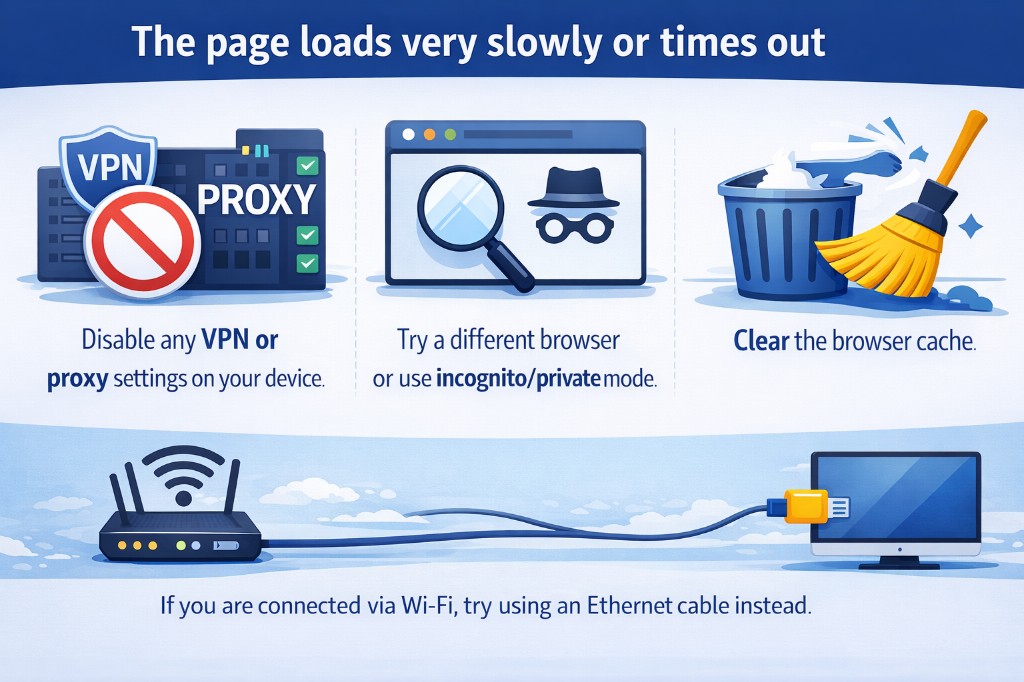
⚠The page loads very slowly or times out
Disable any VPN or proxy settings on your device. Try a different browser or use incognito/private mode. Clear the browser cache. If you are connected via Wi-Fi, try using an Ethernet cable instead.
⚠How to reset the router to factory settings
Locate the small reset button on the back of the router (you may need a paperclip). Press and hold it for at least 10 seconds until the LEDs start blinking. The router will restart with the factory defaults, including the original login credentials.