
How To Reset Your Router?
Here's step by step procedure on how you can reset your WiFi router to it's default settings.
A factory reset restores your router to its original settings, erasing all custom configurations including your Wi-Fi name, password, and admin credentials. This is useful when you cannot access the admin panel or need to start fresh.
Keep in mind that after a reset, you will need to reconfigure your network settings. Make sure to note your ISP details before proceeding.
Step-by-step instructions
- 1
Locate the reset button on your router. It is usually a small recessed button on the back or bottom of the device.
- 2
With the router powered on, press and hold the reset button using a paperclip or pin for about 10–15 seconds.
- 3
Release the button when the indicator lights start flashing or the router restarts.
- 4
Wait 1–2 minutes for the router to fully reboot with factory default settings.
- 5
Connect to the router using the default Wi-Fi name and password (printed on the device sticker).
- 6
Open a browser and navigate to the default admin address to reconfigure your settings.
What to do after a factory reset
- •Reconfigure your Wi-Fi name (SSID) and password.
- •Change the default admin password immediately.
- •Update the router firmware to the latest version.
- •Re-enter your ISP credentials if required (PPPoE, etc.).
- •Reconnect all your devices with the new Wi-Fi credentials.
Common problems
Running into issues? Here are the most common problems and their solutions.
⚠Login credentials are not accepted
The default credentials may have been changed by you or your ISP. Check the sticker on the back of the router for the current password. If it was changed and you cannot remember it, a factory reset will restore the defaults.
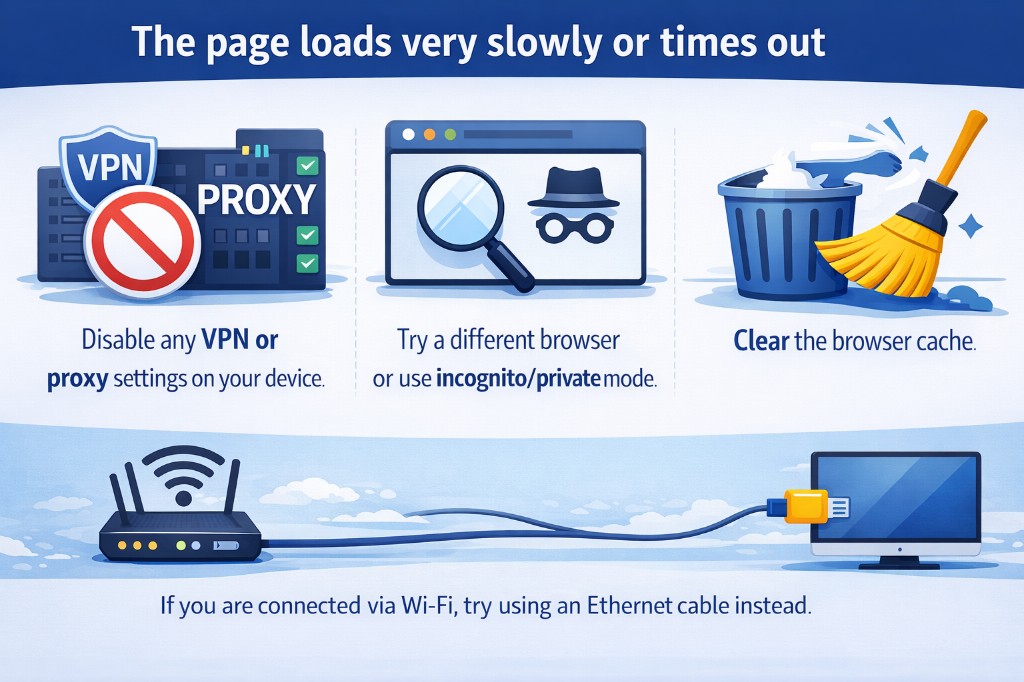
⚠The page loads very slowly or times out
Disable any VPN or proxy settings on your device. Try a different browser or use incognito/private mode. Clear the browser cache. If you are connected via Wi-Fi, try using an Ethernet cable instead.
⚠How to reset the router to factory settings
Locate the small reset button on the back of the router (you may need a paperclip). Press and hold it for at least 10 seconds until the LEDs start blinking. The router will restart with the factory defaults, including the original login credentials.