
How to Protect Your WiFi Network?
As a router owner it is important that you know the basics of WiFi network protection in order to prevent unauthorized access from intruders.
Securing your Wi-Fi network is essential to prevent unauthorized access, protect sensitive data, and maintain optimal network performance. A few simple configuration changes can significantly improve your network security.
This guide covers practical steps you can take to harden your wireless network, from choosing strong encryption to disabling risky features.
Step-by-step instructions
- 1
Change your router's default admin password to a strong, unique one.
- 2
Use WPA3 or WPA2 encryption for your Wi-Fi network. Avoid WEP, which is outdated and insecure.
- 3
Choose a strong Wi-Fi password with at least 12 characters.
- 4
Disable WPS (Wi-Fi Protected Setup) as it can be exploited by attackers.
- 5
Keep your router's firmware updated to patch security vulnerabilities.
- 6
Consider hiding your SSID (network name) to make it less visible to casual users.
- 7
Enable your router's built-in firewall if available.
- 8
Regularly check the list of connected devices and remove any unknown ones.
Additional security recommendations
- •Create a separate guest network for visitors to keep your main network private.
- •Disable remote management unless you specifically need it.
- •Use a DNS service with built-in malware filtering for extra protection.
- •Place your router in a central location to minimize signal leakage outside your home.
Common problems
Running into issues? Here are the most common problems and their solutions.
⚠Login credentials are not accepted
The default credentials may have been changed by you or your ISP. Check the sticker on the back of the router for the current password. If it was changed and you cannot remember it, a factory reset will restore the defaults.
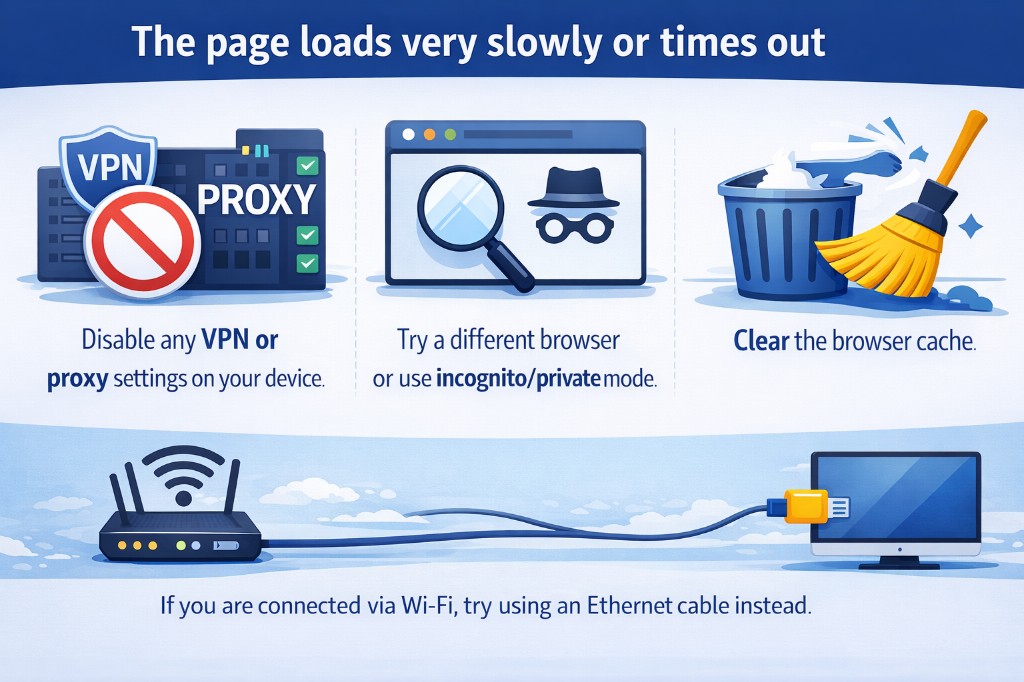
⚠The page loads very slowly or times out
Disable any VPN or proxy settings on your device. Try a different browser or use incognito/private mode. Clear the browser cache. If you are connected via Wi-Fi, try using an Ethernet cable instead.
⚠How to reset the router to factory settings
Locate the small reset button on the back of the router (you may need a paperclip). Press and hold it for at least 10 seconds until the LEDs start blinking. The router will restart with the factory defaults, including the original login credentials.