
How to Blacklist WiFi User?
Multiple devices can connect to a WiFi network wirelessly without a password for public WiFi networks and with a password for password-protected WiFi. The more is the number of WiFi users the weaker the network quality for each of them gets and speed degrades. Data consumption increases for host and the connected WiFi users individually face choppy internet service as well as poor connection. The host still has control over the internet connection and WiFi users that are connected to the router. Here is how you can blocklist WiFi users on your network. To do so you can use the access control feature and block the WiFi user on your network. You need to turn on Access Control for this and here is how you do that.
If you notice unauthorized devices connected to your Wi-Fi network, you can block them using your router's access control or MAC filtering feature. This prevents specific devices from connecting, even if they know the password.
Below you will find general instructions and brand-specific examples for blocking unwanted Wi-Fi users.
Step-by-step instructions
- 1
Open your router's admin panel by entering its IP address in a browser.
- 2
Log in using your admin credentials.
- 3
Look for a section labeled "Access Control", "MAC Filtering", or "Connected Devices".
- 4
Find the device you want to block in the list of connected clients.
- 5
Select the device and choose "Block", "Deny", or add its MAC address to the blacklist.
- 6
Save the changes. The blocked device will be disconnected immediately.
Common problems
Running into issues? Here are the most common problems and their solutions.
⚠Login credentials are not accepted
The default credentials may have been changed by you or your ISP. Check the sticker on the back of the router for the current password. If it was changed and you cannot remember it, a factory reset will restore the defaults.
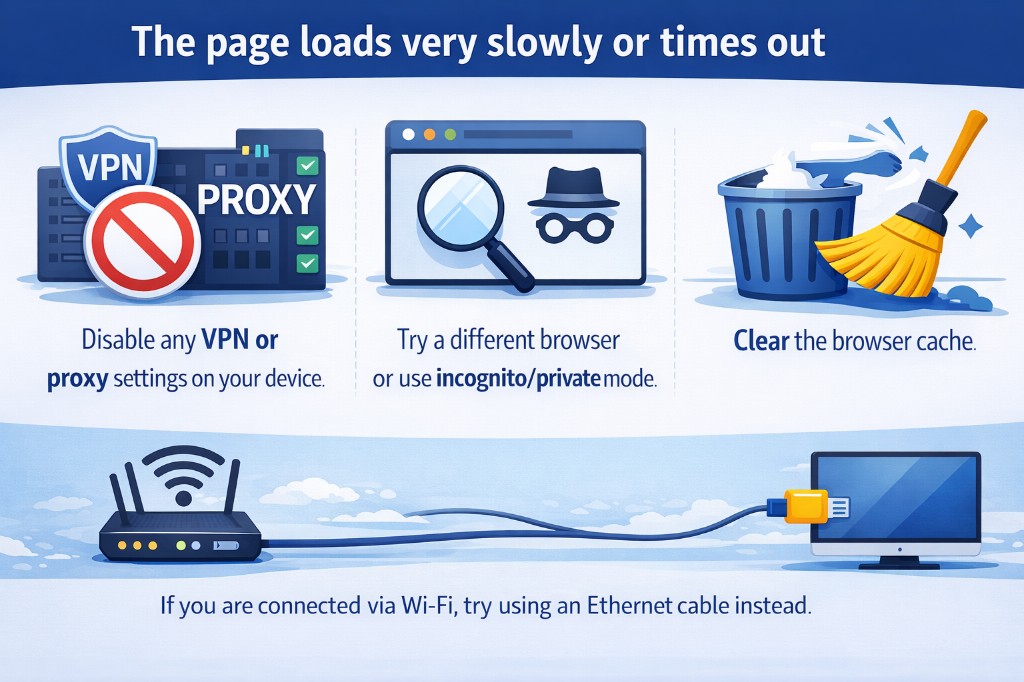
⚠The page loads very slowly or times out
Disable any VPN or proxy settings on your device. Try a different browser or use incognito/private mode. Clear the browser cache. If you are connected via Wi-Fi, try using an Ethernet cable instead.
⚠How to reset the router to factory settings
Locate the small reset button on the back of the router (you may need a paperclip). Press and hold it for at least 10 seconds until the LEDs start blinking. The router will restart with the factory defaults, including the original login credentials.