
How To Change WiFI Password?
If you want to change your default router WiFi password then follow this guide.
Changing your Wi-Fi password regularly is one of the simplest ways to keep your home network secure. A strong, unique password prevents unauthorized users from accessing your connection and protects your personal data.
This guide walks you through the general steps to change your Wi-Fi password, with brand-specific examples where available. The exact menu layout may vary depending on your router model and firmware version.
Step-by-step instructions
- 1
Connect to your router using Wi-Fi or an Ethernet cable.
- 2
Open a web browser and enter your router's IP address in the address bar. Common addresses include 192.168.0.1, 192.168.1.1, or 10.0.0.1.
- 3
Log in with your admin credentials. If you have not changed them, check the sticker on the back of your router.
- 4
Navigate to the wireless or Wi-Fi security settings. The menu may be labeled "Wireless", "WLAN", "Wi-Fi", or "Security" depending on your router.
- 5
Find the password or passphrase field and enter your new Wi-Fi password.
Choose a password with at least 12 characters, mixing uppercase and lowercase letters, numbers, and symbols.
- 6
Save the changes and reconnect your devices using the new password.
All previously connected devices will be disconnected and need to reconnect with the new password.
Examples by router brand
Example: TP-Link
- 1.First of all login to your admin panel at http://192.168.0.1/ or http://192.168.1.1/
- 2.Enter admin and admin as their default login credentials.
- 3.Once logged in go to “Wireless” > “Wireless Security” settings.
- 4.If not already, select “WPA/WPA2 – Personal(Recommended)“.
- 5.Enter your wireless password in the field.
- 6.Save for changes to take effect.
Example: D-Link
- 1.Login to your router settings at http://192.168.1.1/
- 2.Enter admin as username and blank (nothing) in password.
- 3.Go to Wireless Settings > Enter your new password in Pre-Shared Key field.
- 4.Now click Save Settings to save your configurations.
Example: NETGEAR
And that’s how easily you can change your wifi password and this is the same procedure if you want to do on mobile devices (Android & iOS) as this is a web-based GUI. TP-Link, D-Link, and NetGear are the most popular router companies. If you are using other brands such as Linksys, Asus, Tenda the configuration procedure will be pretty much the same to the above.
- 1.Go to http://routerlogin.com/ or http://routerlogin.net/
- 2.Enter admin/password as username and password field.
- 3.Under BASIC menu go to Wireless option.
- 4.Now under Security Options (WPA2-PSK) enter your password in Password (Network Key) fields.
- 5.Apply it, the router will reboot with new configurations.
Tips for a stronger Wi-Fi password
- •Use at least 12 characters with a mix of letters, numbers, and symbols.
- •Avoid common words, names, birthdays, or sequences like "123456".
- •Use a passphrase — a series of random words is easy to remember but hard to crack.
- •Do not reuse passwords from other accounts or networks.
- •Consider changing your Wi-Fi password every 3–6 months.
Common problems
Running into issues? Here are the most common problems and their solutions.
⚠Login credentials are not accepted
The default credentials may have been changed by you or your ISP. Check the sticker on the back of the router for the current password. If it was changed and you cannot remember it, a factory reset will restore the defaults.
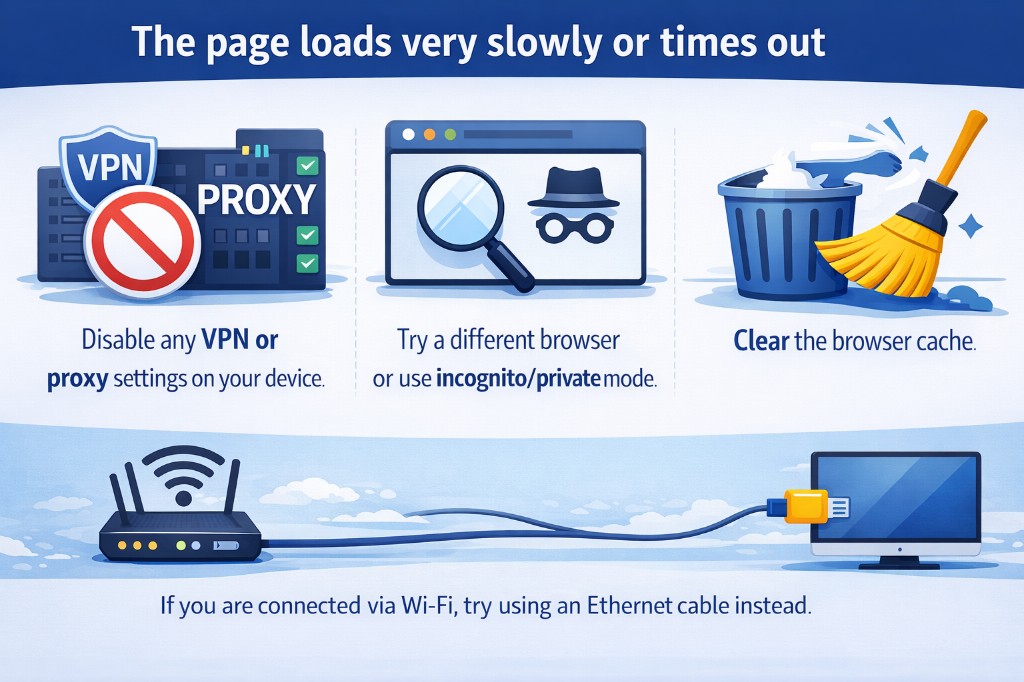
⚠The page loads very slowly or times out
Disable any VPN or proxy settings on your device. Try a different browser or use incognito/private mode. Clear the browser cache. If you are connected via Wi-Fi, try using an Ethernet cable instead.
⚠How to reset the router to factory settings
Locate the small reset button on the back of the router (you may need a paperclip). Press and hold it for at least 10 seconds until the LEDs start blinking. The router will restart with the factory defaults, including the original login credentials.