
I cannot access my router web interface
If you are unable to open your router web interface, use the following troubleshooting tips for help with accessing your router.
If you cannot reach your router's web interface, the issue is usually related to incorrect IP addresses, network connectivity, or browser settings. Most problems can be resolved with a few simple checks.
This guide walks you through the most common causes and their solutions.
Step-by-step instructions
- 1
Make sure your device is connected to the router via Wi-Fi or Ethernet cable — not to a different network or mobile data.
- 2
Verify the correct router IP address. Try 192.168.0.1, 192.168.1.1, or 10.0.0.1 in your browser.
- 3
Clear your browser cache or try a different browser. Incognito/private mode can help rule out extension interference.
- 4
Disable any active VPN or proxy that might redirect your traffic.
- 5
If you recently changed the router's IP address and forgot it, try running `ipconfig` (Windows) or `ifconfig` / `ip route` (Mac/Linux) to find the gateway address.
- 6
As a last resort, perform a factory reset to restore the default settings.
Still unable to access the router?
- •Try connecting directly via Ethernet cable instead of Wi-Fi.
- •Restart both your router and your computer.
- •Check if your router's admin port has been changed from the default (80 or 443).
- •Some routers require HTTPS — try https:// instead of http://.
- •If all else fails, a factory reset will restore the default IP and credentials.
Common problems
Running into issues? Here are the most common problems and their solutions.
⚠Login credentials are not accepted
The default credentials may have been changed by you or your ISP. Check the sticker on the back of the router for the current password. If it was changed and you cannot remember it, a factory reset will restore the defaults.
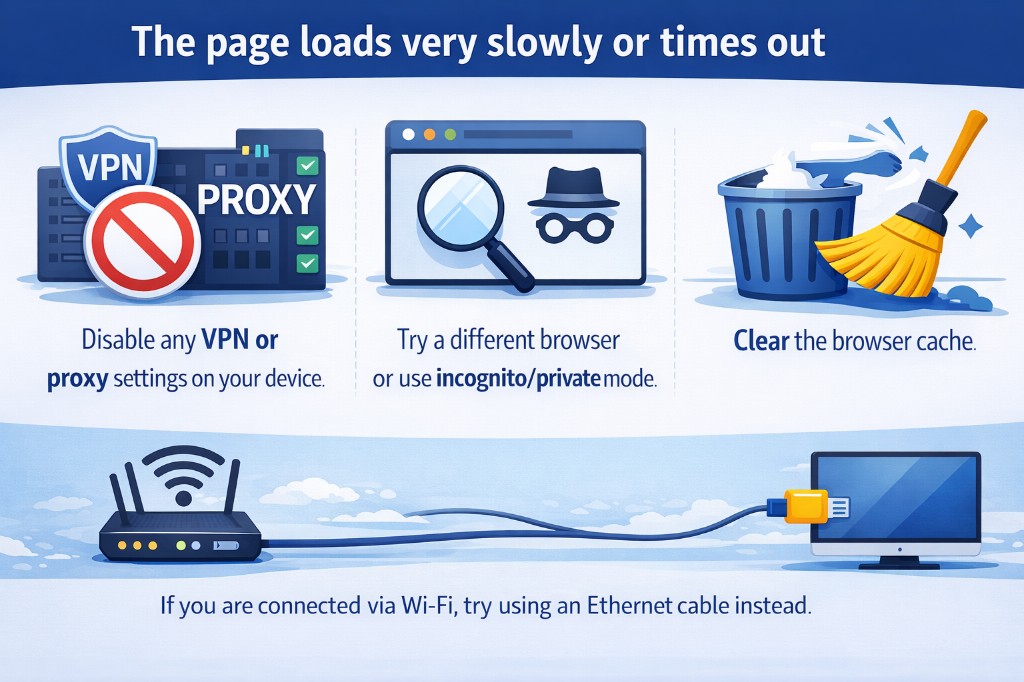
⚠The page loads very slowly or times out
Disable any VPN or proxy settings on your device. Try a different browser or use incognito/private mode. Clear the browser cache. If you are connected via Wi-Fi, try using an Ethernet cable instead.
⚠How to reset the router to factory settings
Locate the small reset button on the back of the router (you may need a paperclip). Press and hold it for at least 10 seconds until the LEDs start blinking. The router will restart with the factory defaults, including the original login credentials.